
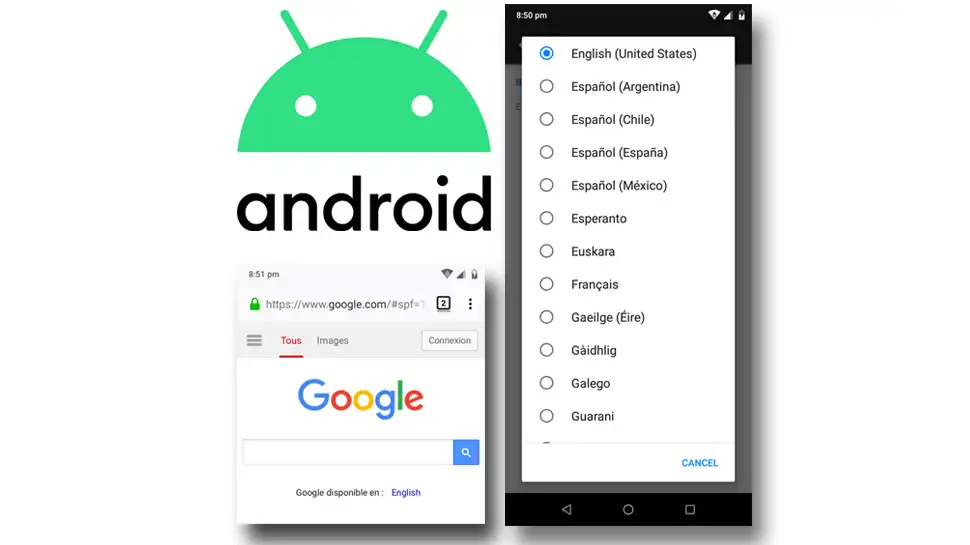
Today, I’ll show you how to change the default display language in Mozilla Firefox on your Android device. This will make websites display pages in a language you choose (if they have your language available). Most larger websites like Google and Wikipedia provide their content in different languages. If you want all websites to display in a language of your choice, install a translation addon with a good star rating.
Contents
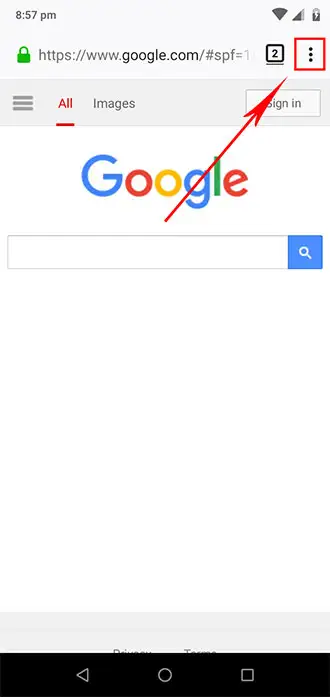
- Tap the Menu icon (three vertical dots) top-right of your screen. (you may need to swipe down to reveal menu header)
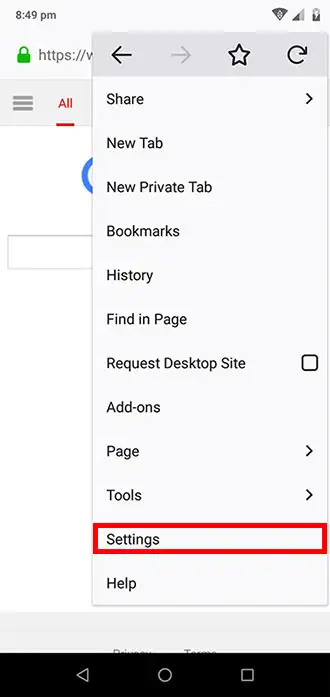
- Tap Settings menu item
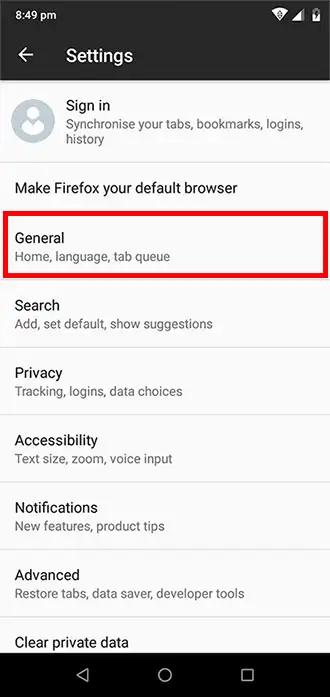
- Tap the General menu item
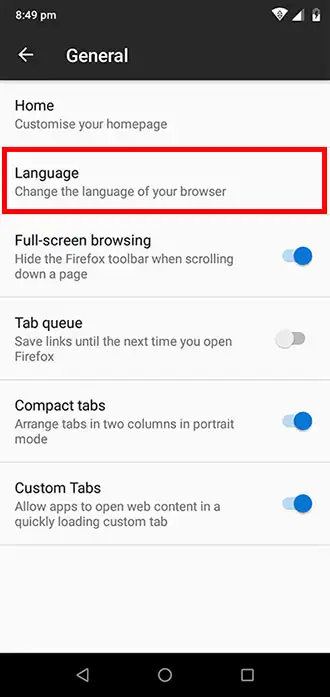
- Tap Language menu item
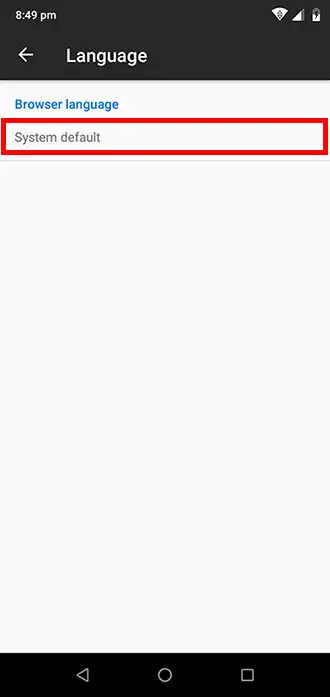
- Under Browser Language, tap System Default
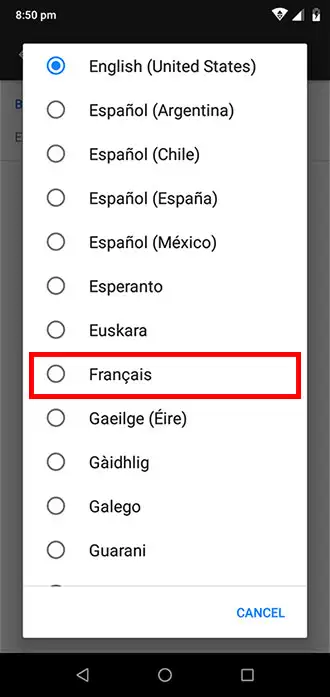
- Choose your preferred language by tapping it on the list. Firefox will automatically apply the changes.
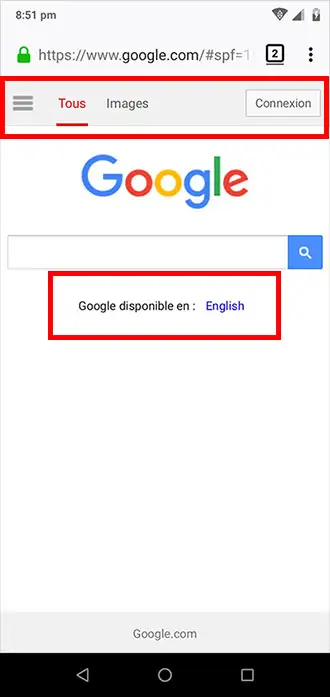
- Visit Google.com which should display in your chosen language (you may need to refresh).
Video: Change browser language in Mozilla Firefox on Android
Conclusion
I hope everything went well and Firefox is displaying web pages in your chosen language. If you had any issues, hit me up in the comments or socials/email.
Comments
There are currently no comments on this article.
Comment